
Why Is My Hikvision DVR - NVR Beeping?
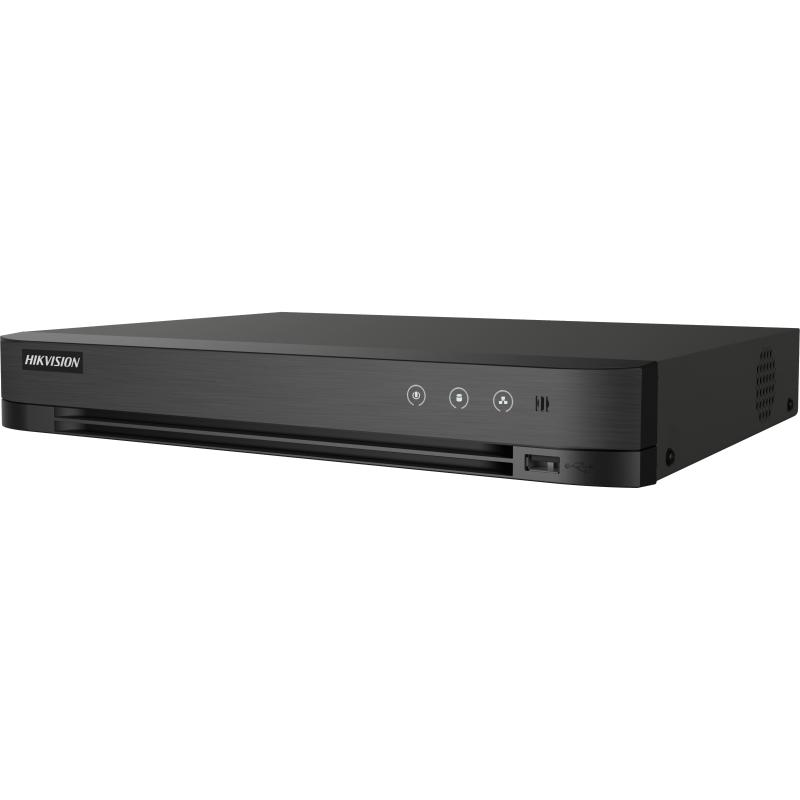
If you’ve recently noticed your Hikvision DVR or NVR is emitting a persistent beeping sound, you're certainly not alone. Many users encounter this issue and often find it both confusing and frustrating. The beeping is more than just an annoyance. It’s typically the device’s way of alerting you to something that needs attention.
Some key reasons may include:
Hard Disk Drive (HDD) Error/Fault:
- The HDD has failed or is about to fail.
- The HDD hasn't been properly initialised (formatted) for the recorder, especially with a new installation.
- The HDD is not detected or properly connected.
HDD is Full:
- The storage is maxed out, and the overwrite function is not enabled (though most surveillance recorders are set to overwrite automatically).
Network Issues:
- Network Disconnected: The recorder has lost its connection to the local network or the internet.
- IP Conflict: Another device on the network is using the same IP address as the recorder.
Security/Login:
- Illegal Login: Someone has tried and failed to log in to the recorder (entered the wrong password too many times).
Recording/Video Issues:
- Record/Capture Exception: An issue preventing recording on a channel.
- Video Signal Exception (DVRs): A camera is disconnected or has a video signal problem.
Motion Detection/Other Events:
- In some recent firmware versions, Motion Detection or other basic events are sometimes set to trigger an audible warning by default.
How to Diagnose the Issue
- Check the Screen: Look for a bell icon or warning triangle on the screen. Clicking or hovering over it may show a notification or pop-up detailing the specific exception (e.g., "HDD Error").
Check the System Log:
- Access the recorder's Menu > Maintenance or Configuration > System > Log.
- Filter the logs by Major Type and select "Exception". The logs should clearly state the cause of the beeping (e.g., "HDD Exception," "IP Conflict")
How to Stop the Beeping
We would Highly recommend you go back to your installer First before trying anything yourself. If you can't get in touch with your installer, then go to our technical page as linked here or contact us to book a session and one of our professionals can suggest a fix or give you a temp fix to get it to stop beeping.
To permanently stop the beeping, you should address the underlying issue (e.g., initialise or replace the HDD, fix the network issue).
- However, you can temporarily or selectively disable the audible warning for specific exceptions:
- Go to Menu > Configuration (or Event) > Exception or Basic Event.
- Use the Exception Type dropdown to find the specific error identified in the logs (e.g., "HDD Error").
- Under the Linkage Action section, uncheck the box next to "Audible Warning" or "Buzzer."
- Click Apply or Save.
You may need to repeat this for multiple exceptions if you want to silence all beeps. It is generally recommended to leave important ones like "HDD Error" enabled so you are alerted to critical failures. Any other faults may exist.